Start music in the morning, assign several actions to a button, or respond to a device state. Each rule says: when something happens, check the conditions and run the next steps.
Step-by-step guide · Includes four downloadable examples · Updated September 9, 2026
From trigger to action
01 / TRIGGER
When should it start?
A scheduled time, device startup, a state change, an I/O input, or a button calling a macro. The trigger starts the rule evaluation.
02 / CONDITIONS
Do the conditions match?
All entry conditions must be true. If they match, the rule selects THEN. Otherwise it selects ELSE, if you have added that branch.
03 / ACTIONS
What should happen?
Steps run in sequence: a command, a delay, a Check, or a message. A Check can wait or stop the selected branch.
Entry conditions and Check run at different times. Entry conditions select THEN/ELSE at the start. A Check reads the state when execution reaches that step. It never switches execution to ELSE.
What can trigger a rule?
A schedule using weekdays or a date, an interval, device startup, sunrise/sunset, a device state change, an I/O input, a macro, or a named hook. Schedules need a valid device clock; sunrise and sunset also need a configured location.
A state trigger responds when a condition changes from not matching to matching. A trigger such as radio = error does not repeatedly fire just because the error persists. At startup or after saving rules, the current state establishes a baseline; saving alone does not fire a state trigger.
Create your first rule
Open Rules in your AtlasCube web interface and choose + Add rule.
Give it a descriptive name, such as “Morning radio”. Click the trigger block to configure it.
Add entry conditions if you need a THEN/ELSE decision. Without entry conditions, the rule selects THEN.
Add steps with +. Click a block to edit its settings. Delay pauses the sequence; Check evaluates a condition.
Enable the rule with the on switch and press Save rules. Canvas edits are not applied to the device until saved.
Use Test, then inspect History → Refresh. Finally, test the rule using its actual trigger.
Flows help organize rules. Putting two rules in the same Flow does not join them into a sequence. Each rule keeps its own trigger and execution.
Check: wait for true, or require it to stay true?
Behavior
Wait until true
Stay true for
What does the time mean?
The maximum time to wait for the condition to become true.
The uninterrupted time the condition must remain true.
Already true on entry
Continues to the next step immediately.
Starts the hold timer. Time before reaching this Check does not count.
A false reading
Keeps waiting until the limit. With a time of 0, checks once and stops the branch if false.
Resets the hold timer. Stays on the Check and waits for another uninterrupted period of true readings.
When does it give up?
When the configured waiting time expires.
When the optional Maximum wait expires, measured from entry to the Check. A value of 0 means no overall timeout.
Enter times in milliseconds: 1000 = 1 s, 15000 = 15 s. Each time setting is limited to 60,000 ms. Maximum wait should exceed the Stay true for duration: if both deadlines coincide, the timeout wins.
While waiting, execution stays on the Check. It does not return to the trigger. Success advances to the next step; a timeout ends the branch. The rule can then respond to a new trigger. Further triggers for the same rule are ignored while its sequence is active. Other rules can continue running.
The engine normally samples the state every 200 ms. Very short changes between samples may be missed. “Uninterrupted” refers to consecutive matching samples.
Four examples to build
These screenshots show the current editor running locally with demonstration data. They illustrate configuration, not successful execution on an ESP32. Click an image to open it at full resolution.
Each JSON download contains one disabled rule. Export your existing rules before importing. Choose the import option that adds to existing rules if you want to keep them; replacing the set removes the previous rules. Review the settings, enable the imported rule, and save.
EXAMPLE 01 / SCHEDULE + WAIT UNTIL TRUE
Weekday radio at 7:00
07:00, Monday–Friday → volume 20 → Radio source → first station → wait for playback → volume 35.
A Check with a ten-second limit waits for the stream to start playing.
Trigger: Time, 07:00, weekdays Mo–Fr.
Commands: vol=20, source=radio, playstation=0. Index 0 means the first station; select your preferred station in the editor.
Check: Internet stream, radio = playing, mode Wait until true, time 10000 ms.
Final action: vol=35.
What happens: if playback starts after three seconds, the rule continues then. If playback has not started within ten seconds, the Check ends the branch. Earlier commands are not undone: the volume remains at 20.
Macro 1 → is anything playing? → YES: stop. NO: select Radio, start the first station, and set volume to 25.
The branch is selected at the beginning. Only one branch runs per execution. The demo links Macro 1 to a door switch; assign it to your preferred button or remote key on your device.
Trigger: macro number 1. Assign the macro:1 action to your chosen physical button or remote key.
Entry condition: Playing anything, playing = true.
THEN: stop.
ELSE: source=radio → playstation=0 → vol=25.
What happens: the state is evaluated when the button is pressed. This is not a Check waiting for a change. Other rules listening to macro 1 will also be triggered; choose an unused macro number if you want separate control.
Testing: choose With conditions to exercise both cases. Without conditions always selects THEN, which only stops playback in this example.
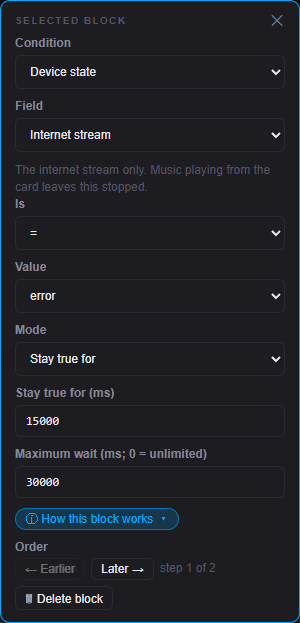
Radio enters error → require fifteen continuous seconds of error, waiting no more than thirty seconds in total → show a notification.
Two independent times: fifteen seconds of continuous error and a thirty-second limit for the entire Check.
Trigger: Internet stream state changes to radio = error.
Check: the same condition, mode Stay true for, duration 15000 ms, Maximum wait = 30000 ms.
Add an Event notification, type Reminder, with the title “Radio error persisted for 15 seconds”. Sound and artwork are optional.
The error remains continuously: the notification appears about fifteen seconds after entry to the Check. The error clears after five seconds: the fifteen-second timer resets. The Check keeps waiting, but its thirty-second overall limit does not restart.
If the error returns at second ten and persists, the notification can appear around second twenty-five. If it returns at second twenty, the overall timeout ends the branch at second thirty. This bounds the waiting time; it does not automatically retry the rule.
Hook “doorbell” → show a notification → publish an MQTT event → send a Telegram message → send a UDP datagram to a local listener.
Four action steps share one trigger. Each message uses its own destination and payload.
Trigger: a named Hook with the name doorbell. Assign the action hook:doorbell to your doorbell input, a button, or a remote key. You can also invoke that action through the device's command interface.
Add an Event, type Reminder, titled “Someone is at the door”. This is the local screen notification.
Add Telegram: text AtlasCube: someone is at the door. Leave Chat id empty to use the chat configured in Settings.
Add UDP: host 192.168.1.50, port 5005, payload doorbell. Replace the host and port with those of your listener.
Action
Configure first
How to verify it
MQTT
Enable MQTT and configure your broker in Settings → MQTT. The rule's topic is absolute: it is not automatically prefixed with the device's base topic.
Subscribe to home/doorbell/event on the same broker. A trigger should publish pressed. Retain is off because a doorbell press is a momentary event, not a persistent state.
Telegram
Enable and configure your bot token and destination chat in Settings → Telegram. Start the bot conversation and ensure it can send to that chat. An explicit Chat id in the action overrides the configured destination.
Check the destination chat for the message. The bot token belongs in Settings, never in the downloaded rule file.
UDP
Run a UDP listener on a reachable computer or device, using the specified port. Allow incoming UDP through its firewall. Host must be a literal IPv4 address, not a hostname or URL.
Inspect the listener for the text doorbell. This is a plain text datagram; the receiving application must understand it. Sending it does not automatically control an arbitrary device.
Sent in sequence does not mean delivered in sequence. These actions do not wait for delivery acknowledgements. MQTT uses QoS 0 and drops the message if the broker is disconnected; Telegram delivery is asynchronous; UDP provides no delivery acknowledgement. Check each receiver as well as History. A completed rule does not prove that any message arrived.
Testing: configure the destinations, enable and save the rule, then use Test once. This example has no entry conditions, so both Test modes select the same actions. Finally, invoke hook:doorbell from your actual control. Repeated presses can send repeated messages; this example does not implement a notification cooldown.
Reuse these actions: you can put the same MQTT, Telegram, and UDP steps after the Check in Example 03 to report a persistent radio error remotely. Change the topic, message, and payload to describe the error. In that version, the messages are only dispatched after the hold condition succeeds.
With conditions evaluates entry conditions and selects THEN/ELSE. Without conditions skips those conditions and selects THEN. Both modes still evaluate Check steps and bypass the trigger. A test requires a saved, enabled rule and restarts that rule's active sequence.
Test queued means the request was accepted into the queue, not that every action succeeded. With unsaved edits, the test uses the version stored on the device. A full queue, an unknown rule, and a disabled rule produce distinct error messages.
History and Live Trace
History → Refresh reads the last 48 events and updates the last retained event shown under each rule. Recording works without an open browser or Live Trace. History is stored in PSRAM, has a fixed limit, and is cleared by a device restart. The page shows a snapshot from its last refresh.
Started THEN / ELSE — a branch was selected.
Check: waiting / holding — the sequence is waiting.
Stopped: Check timeout / false — the branch ended at a Check.
Trigger ignored: rule already running — another trigger arrived during execution.
Sequence completed — the engine reached the end of the sequence. This does not confirm MQTT or Telegram message delivery.
Repetitive history entries are limited; repetitive events omitted reports the suppressed count. Live Trace follows steps as they happen and highlights their blocks. Turn it off when you finish investigating to reduce diagnostic network traffic.
Good to know
Does a timeout undo earlier actions?
No. It stops the remaining steps in the branch. Commands already sent and changes already made are not reversed. Execution does not switch to ELSE.
Can more than one rule run at once?
Yes. Delay and Check do not block other rules. One particular rule supports one active execution and ignores further triggers while it is running.
How many blocks can I add?
Up to 32 rules, four entry conditions per rule, and eight sequence steps shared between THEN and ELSE. Actions, Delay, and Check all count toward that step limit. The rules document is limited to 16 KiB.
What happens if I save while a rule is running?
Save reloads the rules and interrupts active sequences. History records that interruption. Saving does not fire a Boot trigger.
Do I need an internet connection?
Local commands, macros, and I/O inputs do not need a cloud service. Internet radio, time synchronization, and Telegram need their respective network connections. MQTT requires a configured broker, and notifications using files need those resources to be available.
Why can I not see Maximum wait or History?
This guide describes the version with hold timeouts and rule history. Older firmware or Web UI files may not include these options. Update both using the AtlasCube update instructions. The public demo may represent an earlier version.
 AtlasCube